
1) Ensure that you have the Zoom app on your phone. If not, below are links to download the app.
2) When app download is complete, open the app and press Join a Meeting.
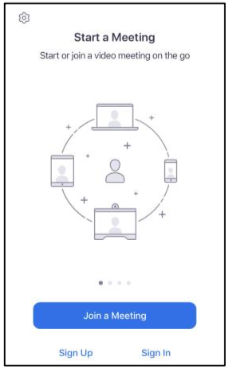
3) Type in the meeting ID in the space provided and press Join. You may be required to enter a Screen Name. Enter your desired name and press Join.
4) Below is an example of what you should see once you’ve successfully joined the meeting.

Note:
- To turn your microphone on/off, press the audio button (indicated by the first icon on the bottom of the screen).
- To turn your video on/off, press the button to the right of the audio button.
- To exit the meeting, press End (indicated by the red button on the top right of the screen).